Showing posts with label Windows. Show all posts

Monday, August 5, 2013

Print the Entire Contents of a File Folder

As I mentioned in my last post, a common task for most law firm's is to list or print the contents of a Windows folder.  

That task can be done through a command line, but remains very user "not-so-friendly".

There are a few really great third party applications that can do this and with relative ease.
One that I use is a great application called TreeSize by JAM software.   It's available from their site with both a personal use version and really useful professional version.

This sort of reporting is very useful when migrating data into a Document Management System or to get a glance at data prior to building a backup structure.   It can also be helpful in Electronic Discovery and document productions in the legal field.


For my example,  I will be using the free version.


I chose a folder on my desktop called "example"


After selecting the folder, TreeSize will begin scanning the directory and all sub-folders to list their contents.
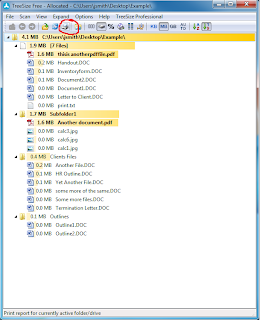
Once it's done, expand all the subfolders and choose Print. 


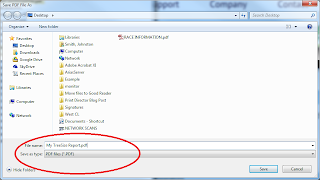
My default printer is set to my PDF printer so I will save and name the file.

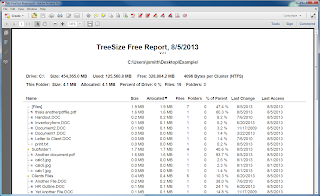
The end result is a very comprehensive report of the contents of any directory. 


Print the Contents of a Directory from Windows Command Prompt

Working with law firms, I often get tasked to list or index the contents of a Windows File Folder either from an external drive or a disk.  While Windows explorer makes this an easy task, they still do not make it simple for those needing to create a paper or even a simple text listing of the file and folder structure.  

While not likely that most end users will do it, you can complete a basic print out like this from a command prompt by doing the following.

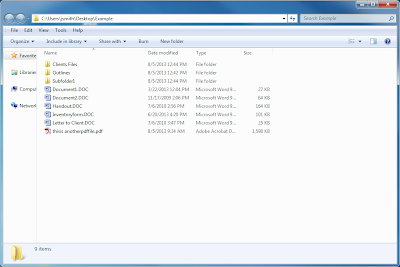
  • Open the folder tree in question with Windows Explorer


  • Highlight the folders path and copy it to your clipboard.  In this case, the folder is on my desktop

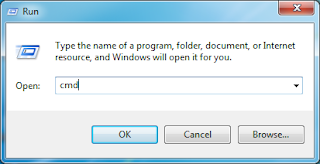
  • Click Start, Choose Run and type CMD to bring up the command line.

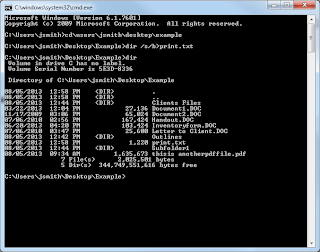
  • Change the directory to the example folder.  Again this on my desktop so I used: cd\users\jsmith\desktop\example
  • Run the directory command with the option to print the file names and any other files in the directories in the current directory.  The results will be placed in plain text file in the same directory.